Month-End Bookkeeping Tips to Keep Finances on Track
Follow these month-end bookkeeping tips to track cash flow, reconcile accounts, manage invoices and keep your business finances organised.

QuickBooks Online helps businesses track stock, manage product quantities, and keep an eye on inventory value.
However, its stock features are designed for basic inventory tracking. You can record products, costs, and stock levels, but businesses with more complex needs may require a dedicated inventory system.
If you use QuickBooks Online Plus or Advanced, you can set up stock tracking and manage your products within QuickBooks.
In this guide, we will show you how to set up and manage your stock in QuickBooks Online.
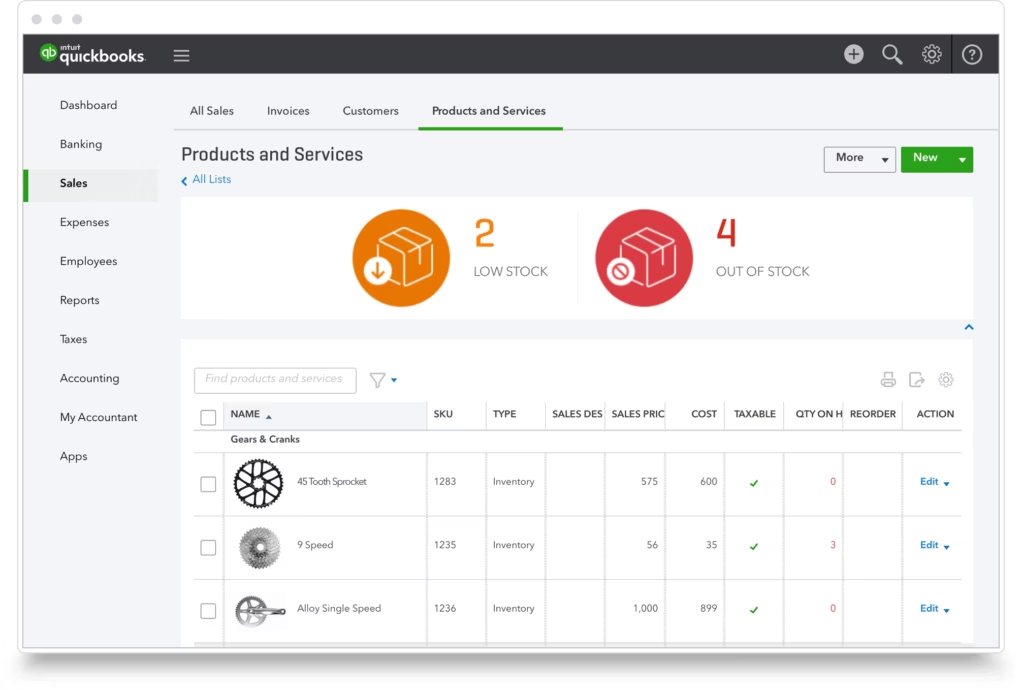
Before adding products, you need to enable stock tracking within your QuickBooks settings.
To turn on stock tracking:
QuickBooks Online allows you to track stock levels, monitor what you buy and sell, and receive alerts when items are running low.
Stock tracking is available with QuickBooks Online Plus and Advanced. If you already have your products in a spreadsheet, you can import them to save time.
To add a product:
Next, add important stock details including your current quantity and reorder levels.
You will need to:
QuickBooks uses the stock asset account to track the value of the products you currently have available.
Once your product is created, you can add details for selling and purchasing.
This includes:
Adding these details helps QuickBooks organise your sales and purchasing information while making future transactions quicker and easier.
Once your products are set up, you can monitor stock levels while creating invoices, sales receipts, and other transactions.
QuickBooks allows you to:
This helps you keep better visibility over your stock levels and avoid unexpected shortages.
QuickBooks Online also provides reports that help you understand your inventory performance.
You can view information such as:
These reports can help you make better purchasing decisions and understand how your products are performing.
For businesses that need more advanced stock control, QuickBooks Online may not provide everything required.
For companies looking for more powerful inventory management and order processing, we recommend exploring OrderTime, an inventory control and order management platform that integrates with QuickBooks Online.
OrderTime can help businesses manage stock more efficiently with enhanced inventory features designed for growing operations.
Follow these month-end bookkeeping tips to track cash flow, reconcile accounts, manage invoices and keep your business finances organised.
Avoid common bookkeeping mistakes small businesses make. Learn how to keep accurate records, manage invoices, VAT and cash flow with QuickBooks Online.
Learn the bookkeeping basics for small businesses, from Profit & Loss and Balance Sheets to bank reconciliation, expenses and QuickBooks.
| Cookie | Duration | Description |
|---|---|---|
| cookielawinfo-checkbox-analytics | 11 months | This cookie is set by GDPR Cookie Consent plugin. The cookie is used to store the user consent for the cookies in the category "Analytics". |
| cookielawinfo-checkbox-functional | 11 months | The cookie is set by GDPR cookie consent to record the user consent for the cookies in the category "Functional". |
| cookielawinfo-checkbox-necessary | 11 months | This cookie is set by GDPR Cookie Consent plugin. The cookies is used to store the user consent for the cookies in the category "Necessary". |
| cookielawinfo-checkbox-others | 11 months | This cookie is set by GDPR Cookie Consent plugin. The cookie is used to store the user consent for the cookies in the category "Other. |
| cookielawinfo-checkbox-performance | 11 months | This cookie is set by GDPR Cookie Consent plugin. The cookie is used to store the user consent for the cookies in the category "Performance". |
| viewed_cookie_policy | 11 months | The cookie is set by the GDPR Cookie Consent plugin and is used to store whether or not user has consented to the use of cookies. It does not store any personal data. |