Month-End Bookkeeping Tips to Keep Finances on Track
Follow these month-end bookkeeping tips to track cash flow, reconcile accounts, manage invoices and keep your business finances organised.

Creating a budget in QuickBooks Online is a simple way to plan ahead, manage spending, and monitor your business performance throughout the year. A budget allows you to set financial targets for your income and expenses, making it easier to identify trends and stay on track.
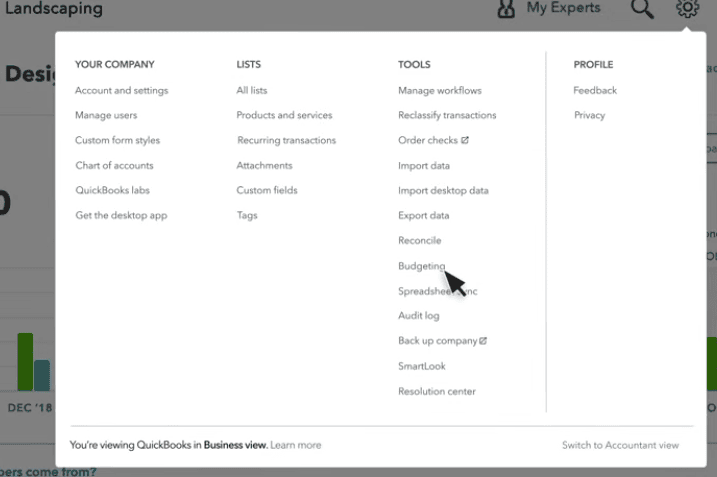
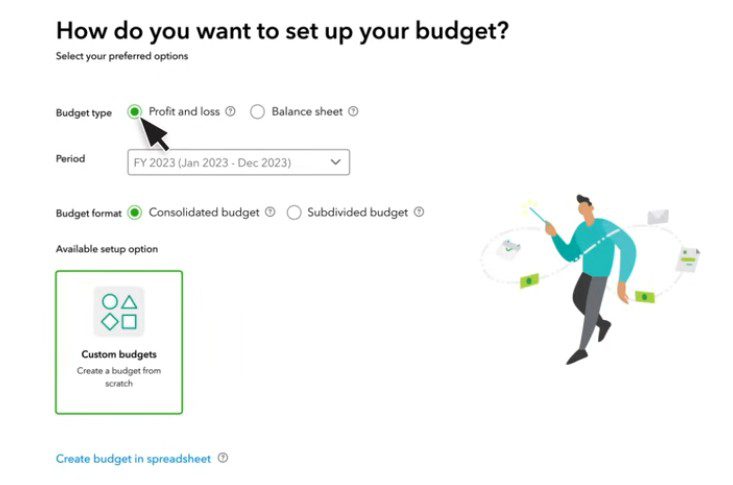
Complete the budget setup by entering the following details:
Once you’ve completed these settings, click Next.
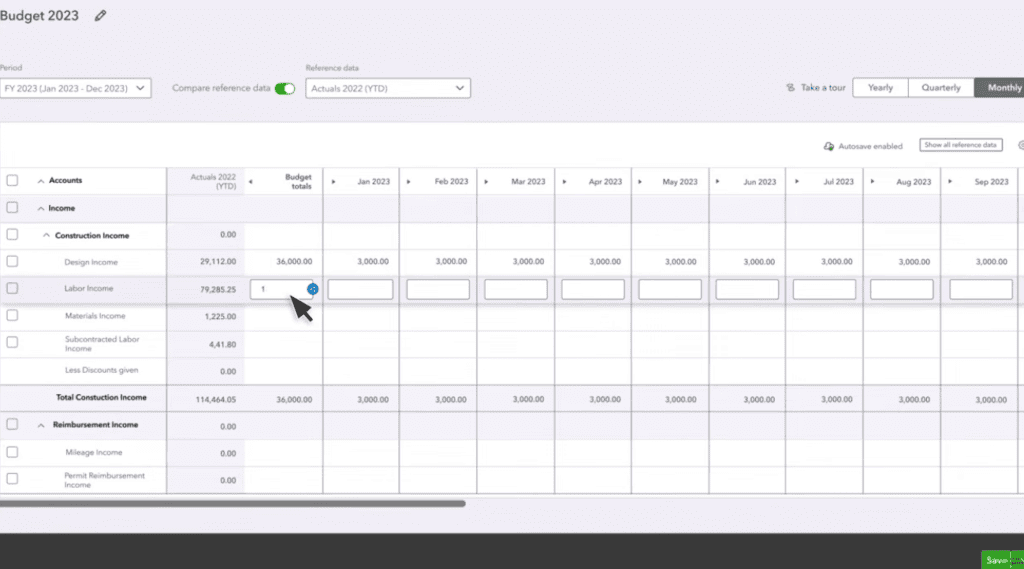
QuickBooks will display a spreadsheet-style view of your Chart of Accounts.
If you’re using QuickBooks Online Pro Plus or Advanced, you can create more detailed budgets by tracking them by:
This gives you greater visibility into different areas of your business.
When you’re happy with your budget, click Save and Close.
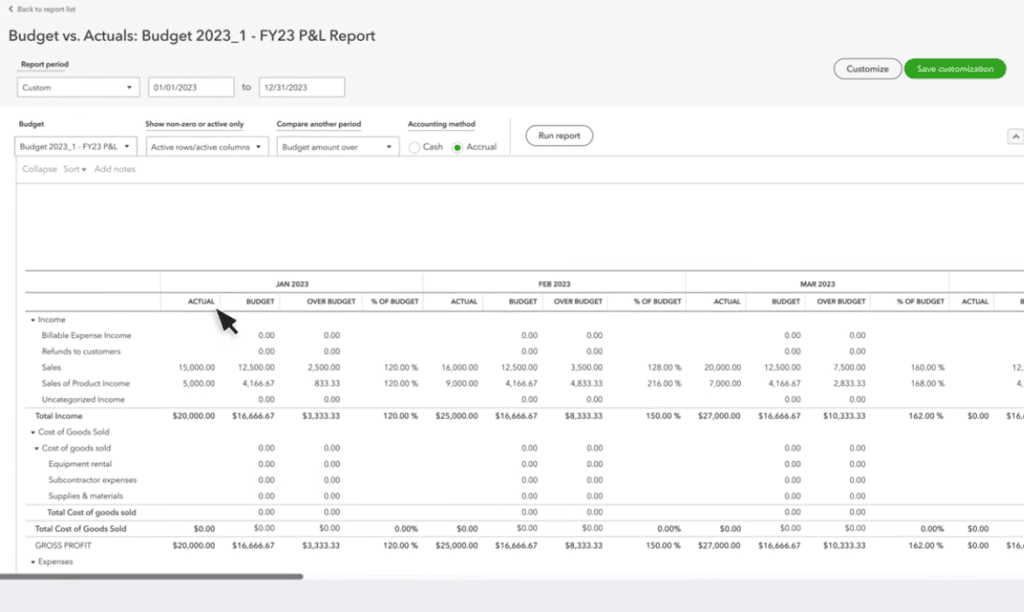
Creating a budget is only the first step. Regularly comparing your actual results against your budget helps you stay in control of your finances.
To view your budget performance:
The report highlights any variances, allowing you to quickly identify where you’re over or under budget. This insight helps you make informed decisions, adjust spending if needed, and keep your business on track throughout the financial year.
Whether you’re just getting started or looking to make better use of QuickBooks, our tailored training sessions can help you work more efficiently and get the most from your software.
Delivered live by a certified QuickBooks ProAdvisor and qualified accountant, every session is customised to your business and can be delivered one-to-one or for your team via Zoom.
Follow these month-end bookkeeping tips to track cash flow, reconcile accounts, manage invoices and keep your business finances organised.
Avoid common bookkeeping mistakes small businesses make. Learn how to keep accurate records, manage invoices, VAT and cash flow with QuickBooks Online.
Learn the bookkeeping basics for small businesses, from Profit & Loss and Balance Sheets to bank reconciliation, expenses and QuickBooks.
| Cookie | Duration | Description |
|---|---|---|
| cookielawinfo-checkbox-analytics | 11 months | This cookie is set by GDPR Cookie Consent plugin. The cookie is used to store the user consent for the cookies in the category "Analytics". |
| cookielawinfo-checkbox-functional | 11 months | The cookie is set by GDPR cookie consent to record the user consent for the cookies in the category "Functional". |
| cookielawinfo-checkbox-necessary | 11 months | This cookie is set by GDPR Cookie Consent plugin. The cookies is used to store the user consent for the cookies in the category "Necessary". |
| cookielawinfo-checkbox-others | 11 months | This cookie is set by GDPR Cookie Consent plugin. The cookie is used to store the user consent for the cookies in the category "Other. |
| cookielawinfo-checkbox-performance | 11 months | This cookie is set by GDPR Cookie Consent plugin. The cookie is used to store the user consent for the cookies in the category "Performance". |
| viewed_cookie_policy | 11 months | The cookie is set by the GDPR Cookie Consent plugin and is used to store whether or not user has consented to the use of cookies. It does not store any personal data. |