Month-End Bookkeeping Tips to Keep Finances on Track
Follow these month-end bookkeeping tips to track cash flow, reconcile accounts, manage invoices and keep your business finances organised.

You can import a chart of accounts in QuickBooks from a spreadsheet, including Excel, Google Sheets or CSV, instead of entering each account manually in QuickBooks Online.
Importing your accounts can save time and help ensure your financial records are organised correctly from the beginning, particularly when setting up a new company or moving your accounts from another accounting system.
You can also export an existing chart of accounts from another QuickBooks company and import it into your new file.
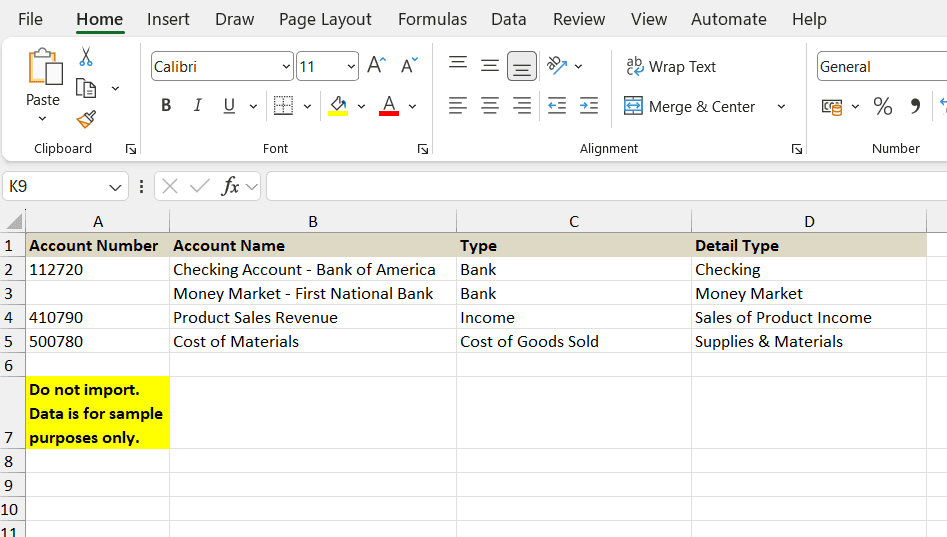
Before you import, you’ll want to format your spreadsheet correctly. You can use an existing spreadsheet of accounts, create a new one, or export your chart of accounts from another QuickBooks file.
Note: You will need to have multi-currency turned on to import and set up accounts using a different currency. Multi-currency is only available in QuickBooks Online Essentials or QuickBooks Online Plus, skip this if you do not use multiple currencies.
Here’s a sample of how your spreadsheet should look. You can also download our sample spreadsheet if you need more examples.
Note: To import accounts as locked, mark them as locked in your import spreadsheet before uploading. This saves time by preventing the need to lock them manually after import.
Once you’ve uploaded your spreadsheet, map each column to the corresponding QuickBooks Online field to make sure your accounts import correctly.
You’re almost finished. Check everything one last time before you import your accounts.
2. Uncheck any account you don’t want to save.
3. If everything looks good, select Import.
As certified QuickBooks ProAdvisors, we provide personalised QuickBooks Online training tailored to your business. Sessions are delivered live via Zoom on Tuesdays and Thursdays, with on-site training available on request.
Whether you’re new to QuickBooks or want to improve your team’s knowledge, we’ll help you build the confidence to manage your accounts efficiently and make the most of every feature.
Follow these month-end bookkeeping tips to track cash flow, reconcile accounts, manage invoices and keep your business finances organised.
Avoid common bookkeeping mistakes small businesses make. Learn how to keep accurate records, manage invoices, VAT and cash flow with QuickBooks Online.
Learn the bookkeeping basics for small businesses, from Profit & Loss and Balance Sheets to bank reconciliation, expenses and QuickBooks.
| Cookie | Duration | Description |
|---|---|---|
| cookielawinfo-checkbox-analytics | 11 months | This cookie is set by GDPR Cookie Consent plugin. The cookie is used to store the user consent for the cookies in the category "Analytics". |
| cookielawinfo-checkbox-functional | 11 months | The cookie is set by GDPR cookie consent to record the user consent for the cookies in the category "Functional". |
| cookielawinfo-checkbox-necessary | 11 months | This cookie is set by GDPR Cookie Consent plugin. The cookies is used to store the user consent for the cookies in the category "Necessary". |
| cookielawinfo-checkbox-others | 11 months | This cookie is set by GDPR Cookie Consent plugin. The cookie is used to store the user consent for the cookies in the category "Other. |
| cookielawinfo-checkbox-performance | 11 months | This cookie is set by GDPR Cookie Consent plugin. The cookie is used to store the user consent for the cookies in the category "Performance". |
| viewed_cookie_policy | 11 months | The cookie is set by the GDPR Cookie Consent plugin and is used to store whether or not user has consented to the use of cookies. It does not store any personal data. |